In one of our previous article, we talked about adding multiple google analytics tags. Since it is a little complicated process when you are not good at JavaScript codes. In this, we will show you how to setup multiple google analytics tracking codes using Google Tag Manager.
Remember that, we are not going to add multiple same analytics tags but multiple different analytics tags. We will be using Google Tag Manager to send data to multiple Google Analytics account from a single page.
Follow the steps below to do this.
1. Create Separate Variables for Each Property
By adding multiple analytics codes means, adding multiple Google Analytics would require adding multiple Google Tags. For this, We’re going to create two separate Configuration Tags for both the properties as shown below:
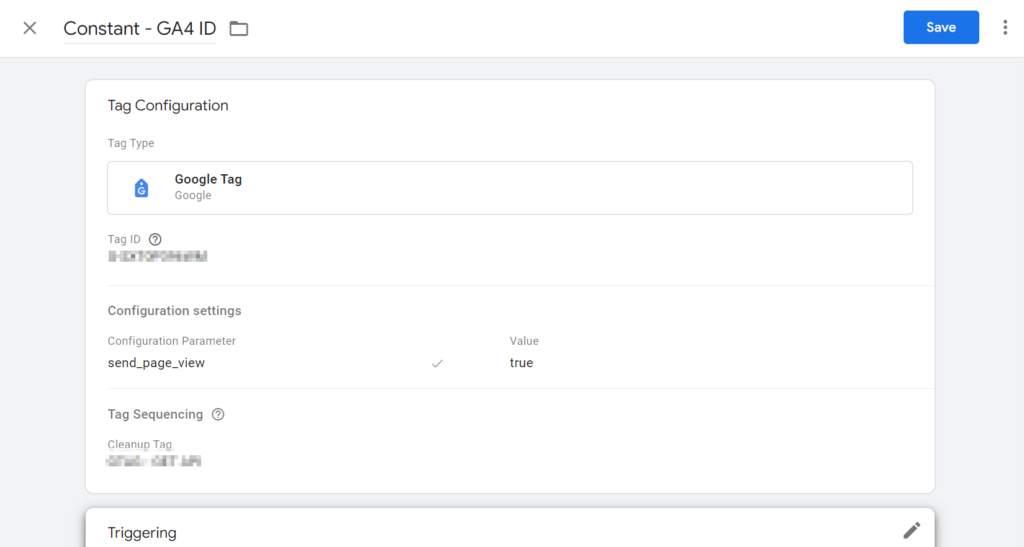
Similarly, create a second Google Tag Configuration for second account. Now that we’re all setup with the configuration, let’s move to the next step

2. Send Data to different properties
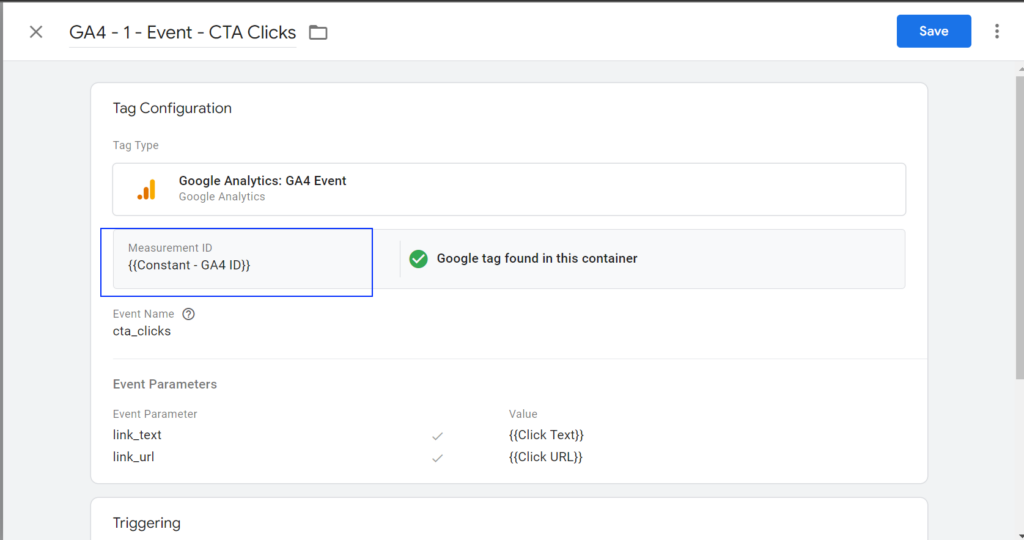
Now that we have our Google Tag setup properly. We would just need to specify where we want to send the data for each tracking tag we specify as shown in the image: